
Skip the setup hassle
Get a managed Minecraft server on AMD EPYC Enterprise hardware with Pterodactyl pre-installed, sub-10ms Mumbai ping & 2 Tbps DDoS shield.
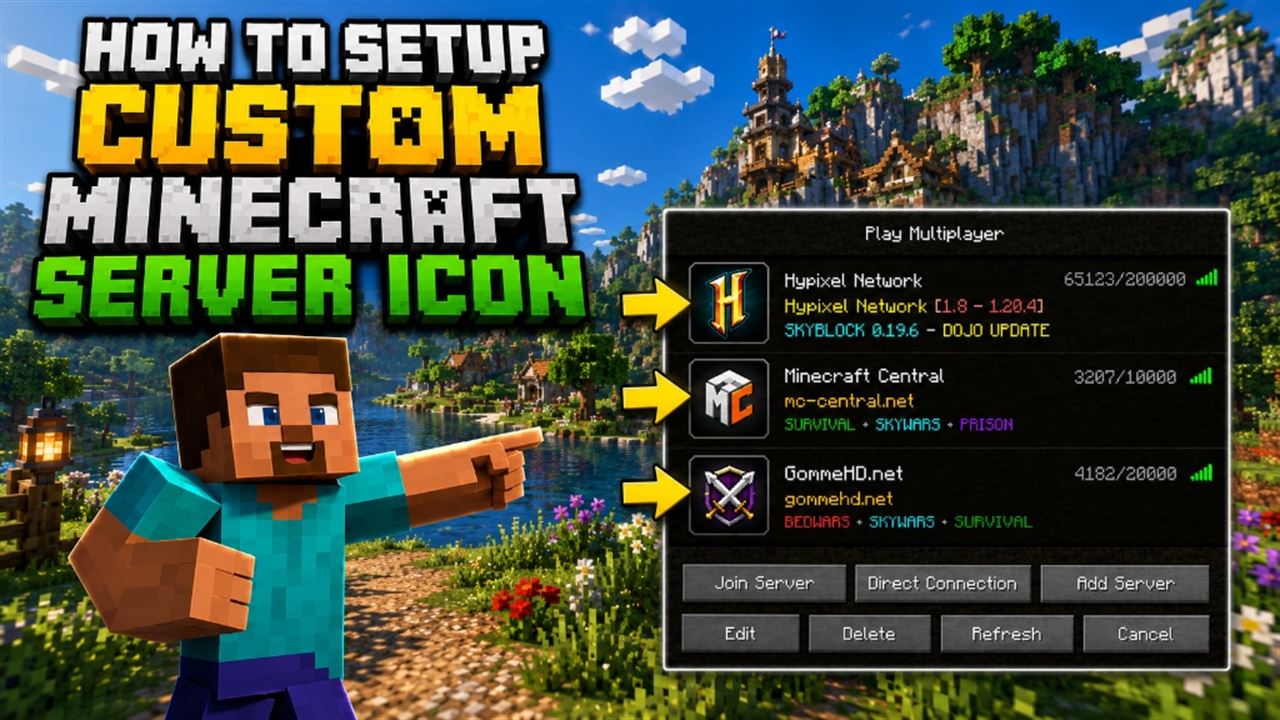
A custom server icon is a great way to make your Minecraft server stand out in players' server lists. By default, servers show a generic gray icon. Adding a custom icon gives your community a professional brand identity. In this guide, we will walk you through preparing your image and uploading it to your Minecraft server via our Pterodactyl management panel.
Step-by-Step Guide to Uploading a Server Icon
Minecraft has strict format requirements for server icons. If your image size or format is incorrect, the server will ignore it. Follow these steps to configure it properly:
Prepare or Locate Your Image
Find the image you want to use. Ensure it adheres to the following criteria:
- Must be a exact square image.
- Must have a size of precisely 64x64 pixels.
- Must be in PNG format.
Pro Tip: Automatic Converter
You can utilize mcutils.com/server-icon-converter to automatically resize your image to 64x64 pixels, convert it to PNG format, and name it server-icon.png.
Access the Server Panel
Access your server through our management panel at gp.skyraincloud.in.
Navigate to File Manager
Click on your server, and navigate to the File Manager (listed as the Files menu) on the left sidebar within your server settings.
Delete Existing Icon (If Present)
Locate the file named server-icon.png in the root directory (the top-level folder). If it exists, delete it. If the file does not exist, proceed to the next step.
Upload Your server-icon.png
Upload your prepared image file. Ensure that the server icon file is named exactly server-icon.png and is placed in the root directory of your Minecraft server.
Activating the Icon
Once the image file is uploaded to the root directory, simply restart your Minecraft server from the console page. When the server boots back up, Minecraft will read the file and display your custom icon on everyone's server list!
⚠️ Troubleshoot Note: Icon Not Displaying? If your icon does not load, double-check that the file name is completely lowercase:server-icon.png(notServer-Icon.pngorserver-icon.png.png). Also, ensure that you cleared your local Minecraft client's server list cache by clicking "Refresh" in multiplayer mode.
Frequently Asked Questions
Can I use animated GIFs for the server icon?
No, Minecraft only supports static PNG files for the server icon. Animated GIFs are not supported in the default server list.
What happens if the image is larger than 64x64?
Minecraft will fail to load the icon and it will show the default grey logo. The resolution must be exactly 64x64 pixels.
Does the icon work for Bedrock players?
Yes! If you are running GeyserMC to allow Bedrock/mobile players to join your Java server, Geyser will automatically query the server-icon.png and display it to Bedrock players in their server menus.
Extreme Game Server Infrastructure: Single-Thread Dominance
Minecraft and modern game servers rely strictly on a single thread for their primary game tick loop (20 TPS). Multi-core low-frequency server CPUs fail to prevent tick lag during heavy redstone, mob spawning, or chunk loading. SkyRainCloud deploys flagship AMD EPYC Enterprise compute nodes operating at up to 3.7 GHz High Frequency single-core boost clock with DDR5 ECC RAM and Pterodactyl panel management.
AMD EPYC Single-Core
Flagship AMD Zen 5 single-thread frequency guarantees steady 20 TPS across high-density SMPs and heavy modpacks.
India Domestic Ping
Tier-3 Mumbai & Noida game nodes eliminate player rubberbanding, combat delays, and hit-registration lag.
Game-Shield DDoS
Custom Layer 4/7 filters absorb Minecraft ping floods, UDP reflection, and bot connection swarms without kicking players.
Performance Comparison: SkyRainCloud vs Competitor Game Hosts
| Evaluation Criteria | SkyRainCloud AMD EPYC Node | Competitor Shared Game Hosts |
|---|---|---|
| CPU Clock Frequency | AMD EPYC Enterprise (3.7 GHz High Frequency Boost, Zen 5) | Older Xeon E5 / AMD EPYC Milan (2.2 - 3.4 GHz) |
| Server Panel | Pterodactyl Panel (1-Click Modpacks, Backups, SFTP) | Clunky Multicraft or Restricted Proprietary Panels |
| DDoS Protection | 2+ Tbps Game Shield (UDP & Handshake Filter) | Basic Null-Routing (Server Drops Offline When Attacked) |
| RAM Architecture | DDR5 5600 MT/s ECC High-Bandwidth Memory | DDR3 / DDR4 Shared Non-ECC Memory |
| Pricing & Billing | From ₹99/mo (Instant UPI, Paytm, GPay, Zero Forex) | $7.50+/mo in USD with International Card Forex Penalties |
Deploy India's Highest Performance Cloud Infrastructure
Instant automated activation in under 60 seconds with instant UPI / Net Banking & 18% GST invoices.
📚 Recommended Reading
🚀 Explore Our Services
- • Minecraft Server Hosting — AMD EPYC nodes from ₹79/mo
- • Game Server Hosting — Minecraft, modpacks & more
- • KVM VPS Hosting — Intel Xeon & AMD EPYC from ₹649/mo
- • Windows RDP Hosting — Full admin access from ₹999/mo
- • Hosting Tools & Calculators — Minecraft RAM Calculator, VPS Builder, Server Status Checker