
Skip the setup hassle
Get a managed Minecraft server on AMD EPYC Enterprise hardware with Pterodactyl pre-installed, sub-10ms Mumbai ping & 2 Tbps DDoS shield.
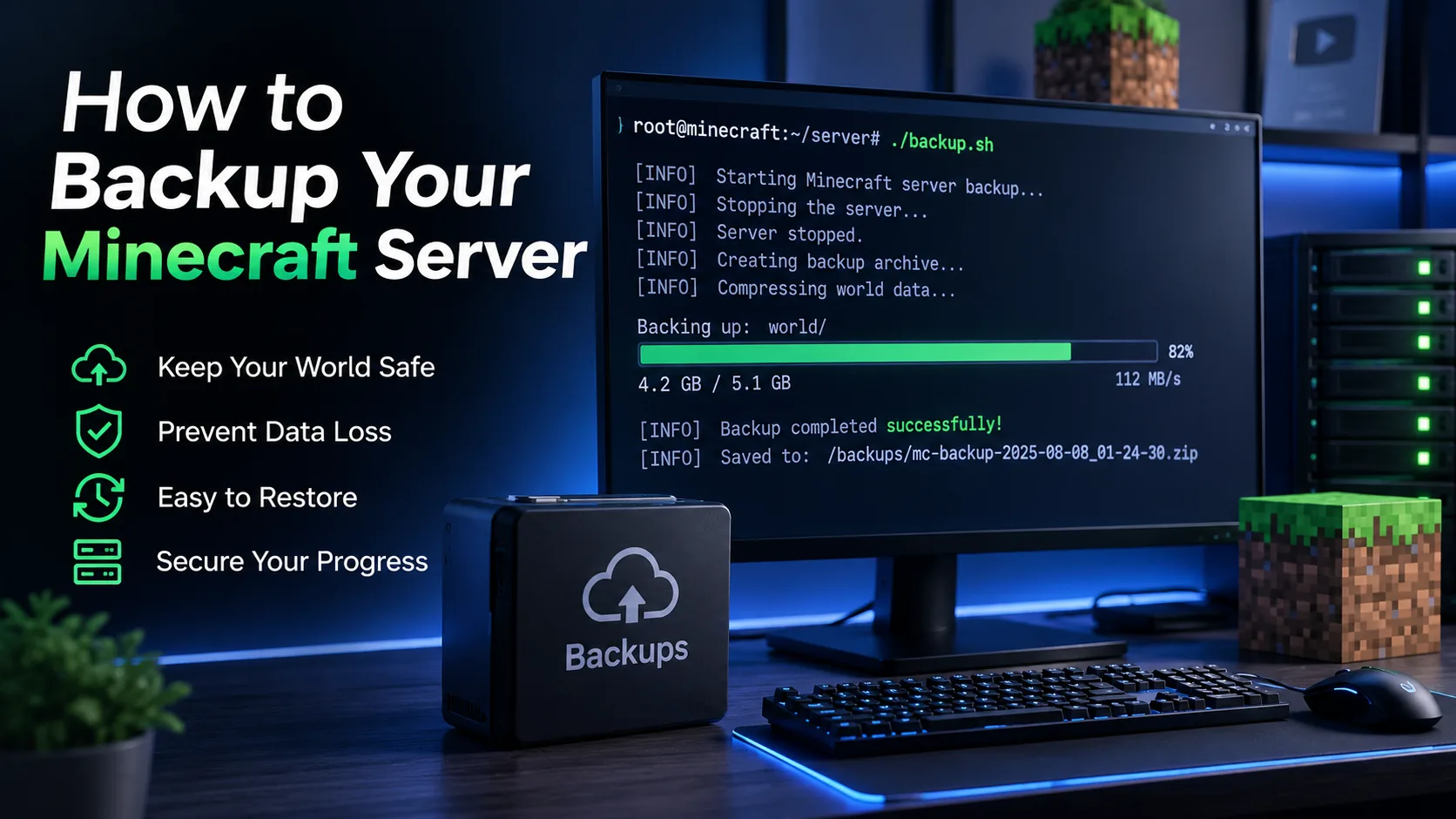
Taking regular backups of your Minecraft server is crucial to prevent data loss. Whether you're planning to install experimental plugins, change server versions, or simply want peace of mind, having a recent copy of your world and server configuration files is invaluable. In this guide, we will walk you through the manual backup process using our Pterodactyl-based panel.
Step-by-Step Guide to Taking a Backup
Follow these simple steps to manually compress and download your Minecraft server files:
Access the Game Panel
Log in to your SkyRainCloud game server management panel and select the Minecraft server you wish to back up.
Stop Your Server
Go to the server console and click the red Stop button. Stopping the server ensures that no active world autosaves or edits occur while files are being copied, preventing file corruption in your backups.
Open the File Manager
Navigate to the File Manager tab from the sidebar menu to view your server's root directory files.
Select Your Files
Select all the files and folders you want to include in the backup. To back up the entire server, check the master selection checkbox at the top list header to select all files (including folders like world, plugins, and server configs).
Create Archive
Once the files are selected, right-click (or click the options dropdown) and select Archive. The panel will compress the selected files into a single zip/tar archive file for easier handling.
Download the Archive
Locate the newly created archive file (e.g., archive.tar.gz or archive.zip). Click the three dots next to the file, and select Download to save it to your local device for safekeeping. Once the download completes, you can delete the archive file from the server to free up disk space.
💡 Pro Tip: Automatic Backups Tab Pterodactyl also features a built-in Backups tab. You can click on it and select "Create Backup" to let the system generate a secure restore point automatically. You can also configure automated cron schedules to run backups every night!
Frequently Asked Questions
Do I really need to stop the server to backup?
Yes, it is highly recommended. If the server is running, players placing blocks or chunk autosaves can happen mid-copy, leading to a corrupt zip file. Stopping the server ensures complete file integrity.
How often should I take backups?
We recommend taking backups at least once a day if your server is active. Always take a manual backup before installing new plugins, running version updates, or editing database configs.
Extreme Game Server Infrastructure: Single-Thread Dominance
Minecraft and modern game servers rely strictly on a single thread for their primary game tick loop (20 TPS). Multi-core low-frequency server CPUs fail to prevent tick lag during heavy redstone, mob spawning, or chunk loading. SkyRainCloud deploys flagship AMD EPYC Enterprise compute nodes operating at up to 3.7 GHz High Frequency single-core boost clock with DDR5 ECC RAM and Pterodactyl panel management.
AMD EPYC Single-Core
Flagship AMD Zen 5 single-thread frequency guarantees steady 20 TPS across high-density SMPs and heavy modpacks.
India Domestic Ping
Tier-3 Mumbai & Noida game nodes eliminate player rubberbanding, combat delays, and hit-registration lag.
Game-Shield DDoS
Custom Layer 4/7 filters absorb Minecraft ping floods, UDP reflection, and bot connection swarms without kicking players.
Performance Comparison: SkyRainCloud vs Competitor Game Hosts
| Evaluation Criteria | SkyRainCloud AMD EPYC Node | Competitor Shared Game Hosts |
|---|---|---|
| CPU Clock Frequency | AMD EPYC Enterprise (3.7 GHz High Frequency Boost, Zen 5) | Older Xeon E5 / AMD EPYC Milan (2.2 - 3.4 GHz) |
| Server Panel | Pterodactyl Panel (1-Click Modpacks, Backups, SFTP) | Clunky Multicraft or Restricted Proprietary Panels |
| DDoS Protection | 2+ Tbps Game Shield (UDP & Handshake Filter) | Basic Null-Routing (Server Drops Offline When Attacked) |
| RAM Architecture | DDR5 5600 MT/s ECC High-Bandwidth Memory | DDR3 / DDR4 Shared Non-ECC Memory |
| Pricing & Billing | From ₹99/mo (Instant UPI, Paytm, GPay, Zero Forex) | $7.50+/mo in USD with International Card Forex Penalties |
Deploy India's Highest Performance Cloud Infrastructure
Instant automated activation in under 60 seconds with instant UPI / Net Banking & 18% GST invoices.
📚 Recommended Reading
🚀 Explore Our Services
- • Minecraft Server Hosting — AMD EPYC nodes from ₹79/mo
- • Game Server Hosting — Minecraft, modpacks & more
- • KVM VPS Hosting — Intel Xeon & AMD EPYC from ₹649/mo
- • Windows RDP Hosting — Full admin access from ₹999/mo
- • Hosting Tools & Calculators — Minecraft RAM Calculator, VPS Builder, Server Status Checker